Wingmirror
A macOS menu bar app that turns a Corsair Xeneon Edge (a 14.5" 2560×720 touchscreen) into a panel for the coding agents running on your Mac. It shows every session, what each one is doing and how full its context is, and when one asks permission to run something you can approve or deny it with a tap. Claude Code and Codex have built-in connections, GitHub Copilot and Cursor each have a first one that shows their sessions, and anything else can report over HTTP. Free, MIT licensed.
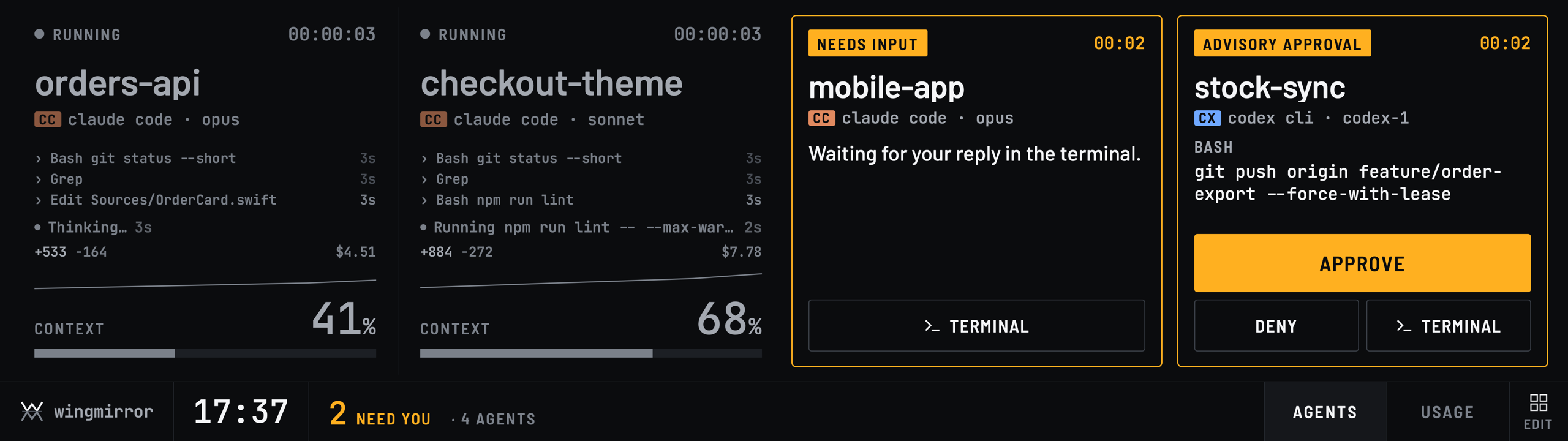
The sessions in the pictures are made up, and so is everything else in them: tools/make-pictures.sh draws them all from a test instance.
What it does
When the app opens, the panel comes up behind its mark: the two wings draw themselves, the name rises under them, and the opening lifts away once every widget on the page has loaded, after two seconds at least and five at most. With the name hidden from the bar, the opening shows the mark alone.
The agents page
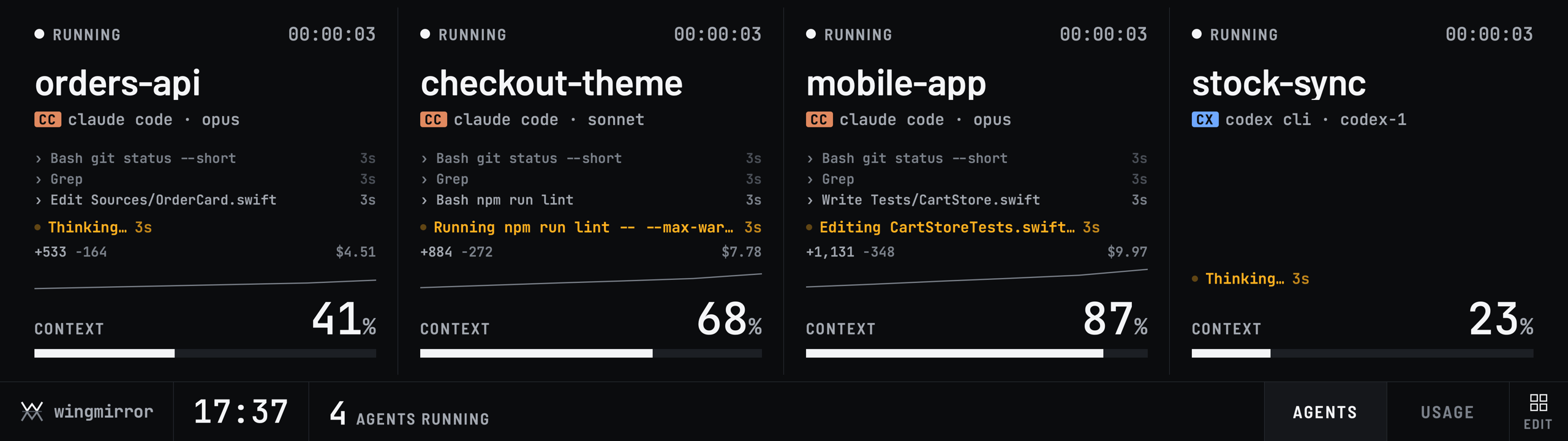
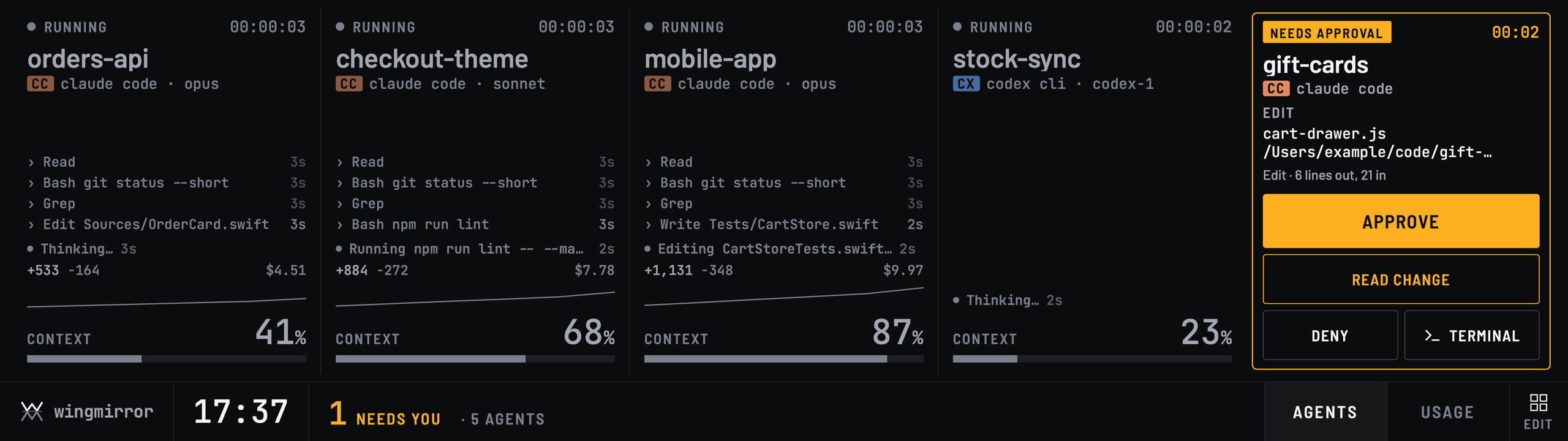
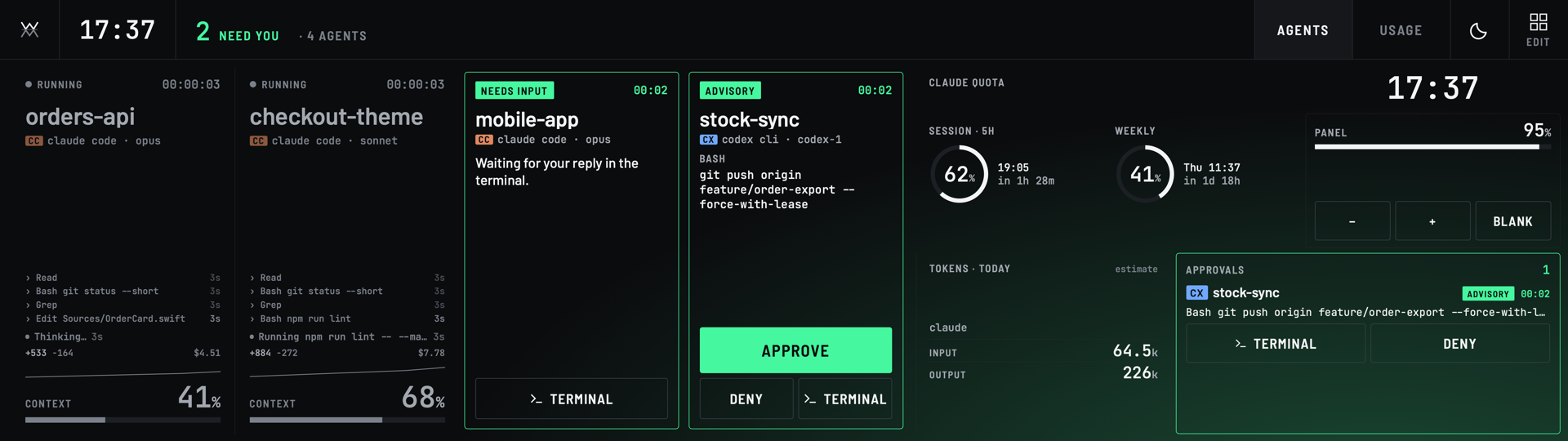
One card per session, in as many columns as you choose (3, 4, 5, 6 or 8). Each card has the project, the agent and model, how long the session has been in its state, the last few tools it finished, lines added and removed, cost, and context use as a line over time and a figure, where the agent reports them.
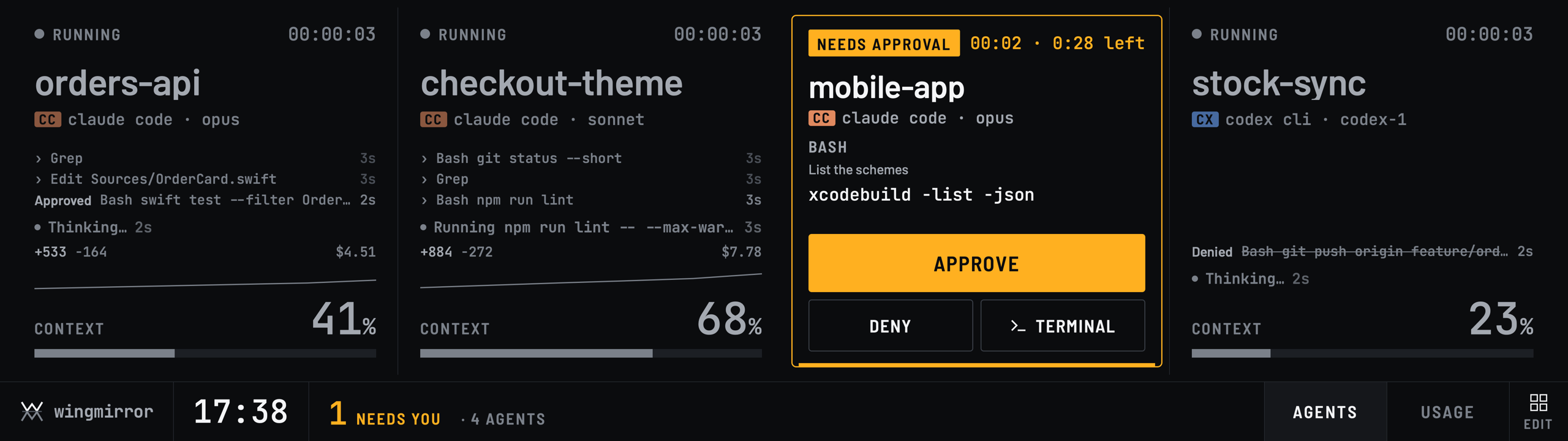
What you decide on the panel is on the card too, among the tools: "Approved" or "Denied" with the command, or "Answered" with the answer you tapped and the question. A command you denied is struck through, since it did not run, and an approval followed at once by the command itself is one line. The latest of them stays on the card for two minutes however much the session gets through meanwhile.
While a session works, one line on its card says what it is doing this moment and for how long: the tool that is running ("Running npm test", "Editing cart.js"), that it is thinking, or, when it has handed work to helpers, how many are at it and what the latest is doing.
A session that is idle or done says in the same place when it last did something: "Last active 14 min ago", then hours, then days. It is counted from the end of its last turn or stretch of work, or its last finished tool if that is later. A session that was already open and at rest when the app started says nothing there until it has worked: the app does not know when it last did.
After the app has been restarted the cards that were on the panel are there again, each as it was left: the app keeps a short list of its sessions on disk for this. A session that was in the middle of a turn, or asking for approval, when the app stopped comes back at rest and says "Was working when Wingmirror restarted" until one of its hooks is heard, since whether it is still at work is not known and a request the app was holding went with it; answer such a request in its terminal. A session whose time ran out while the app was away (ten minutes of silence for one in a terminal, and so on) is not put back, and one in a terminal that does not report again goes quiet and then goes, as it would have.
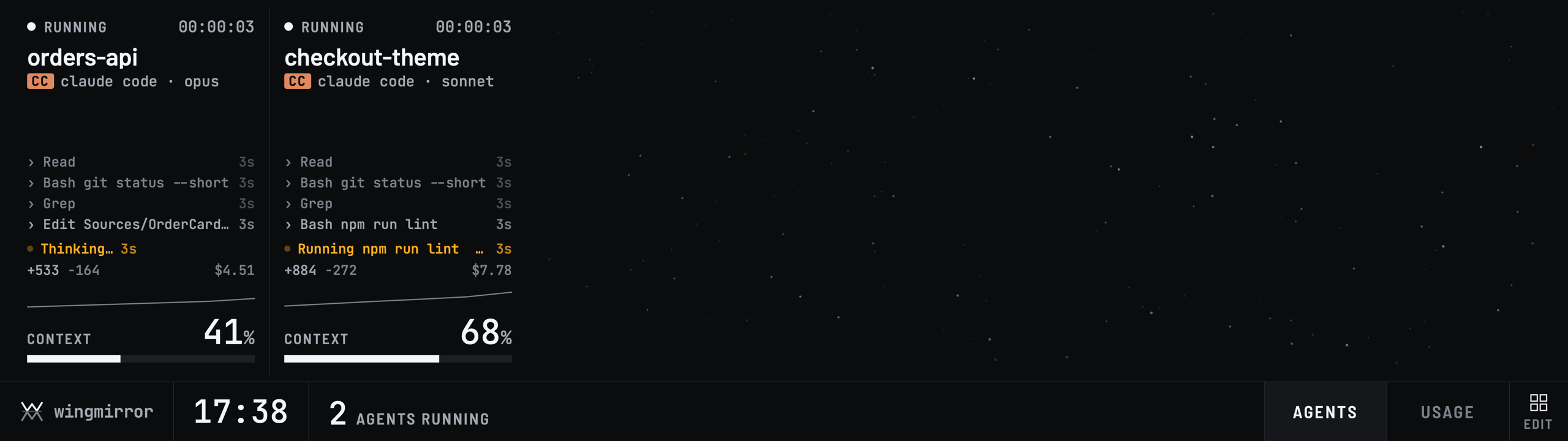
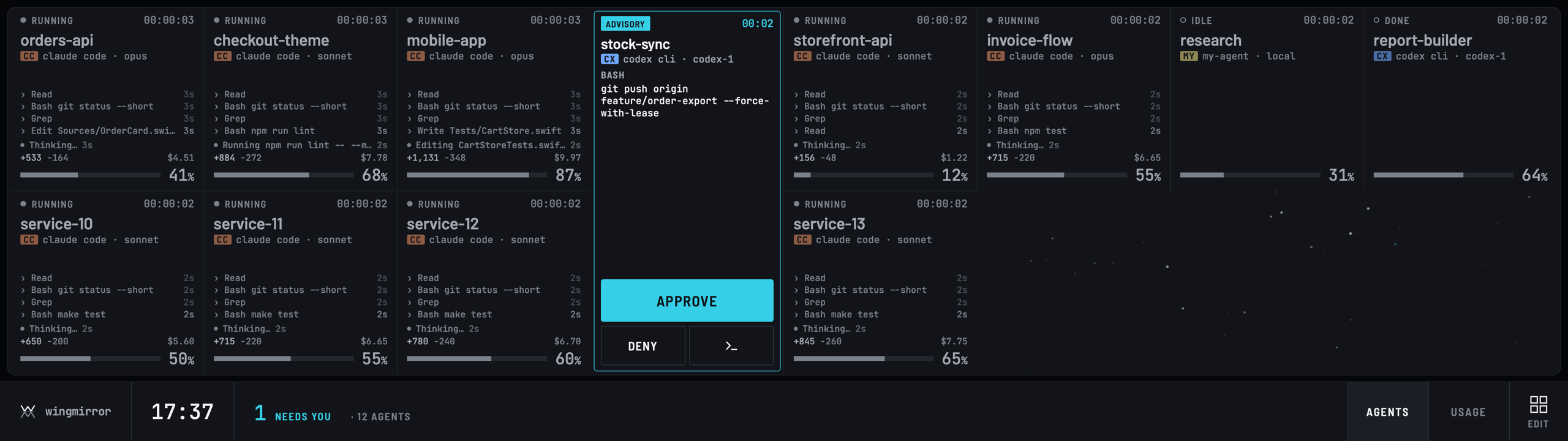
A session that needs you turns into a card in the accent colour, in place, and moves to the front, unless you have told the cards to keep their places. With more sessions than columns the cards go to two rows, and anything beyond that is listed in the last cell, as many as fit on lines large enough to tap. A project name too long for its card is set a size smaller, and if it is still too long it loses its middle, not its end. Idle sessions can be hidden. Where there is no card, the widget shows a slow starfield, or another picture of your choosing, or nothing: see Empty space under the built-in widgets.
Approvals
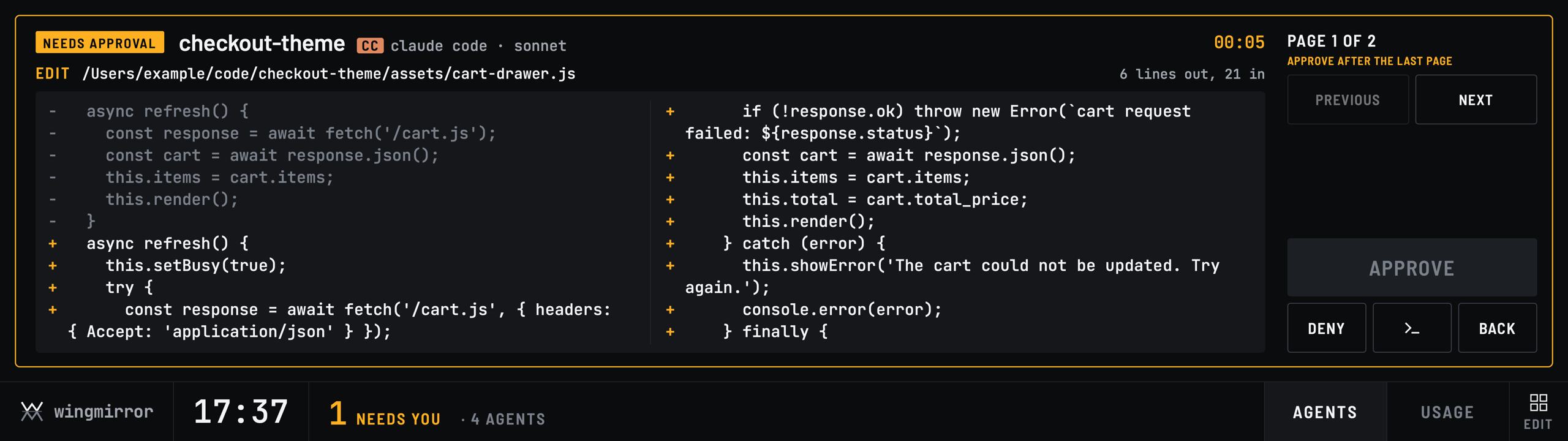
A permission request appears on the session's card with Approve, Deny and Terminal. The card counts how long it has waited. A request is held for only so long, and in its last minute the card also says how long is left ("0:45 left") while a thin bar drains along its bottom edge; a helper's request, held for half a minute, shows this from the start. The same is on a question and on a request opened to read; the picture above has one. A file edit can be approved on its file name, or opened and read first; a long command is read in pages before Approve comes alive. See Approving and answering.
The usage page
Claude Code's five-hour and weekly quota as rings (in the accent colour from 90%), today's token totals, and a timeline with one bar per session marking the moments it needed you. The sessions in this picture are a few seconds old, so their bars are still empty.
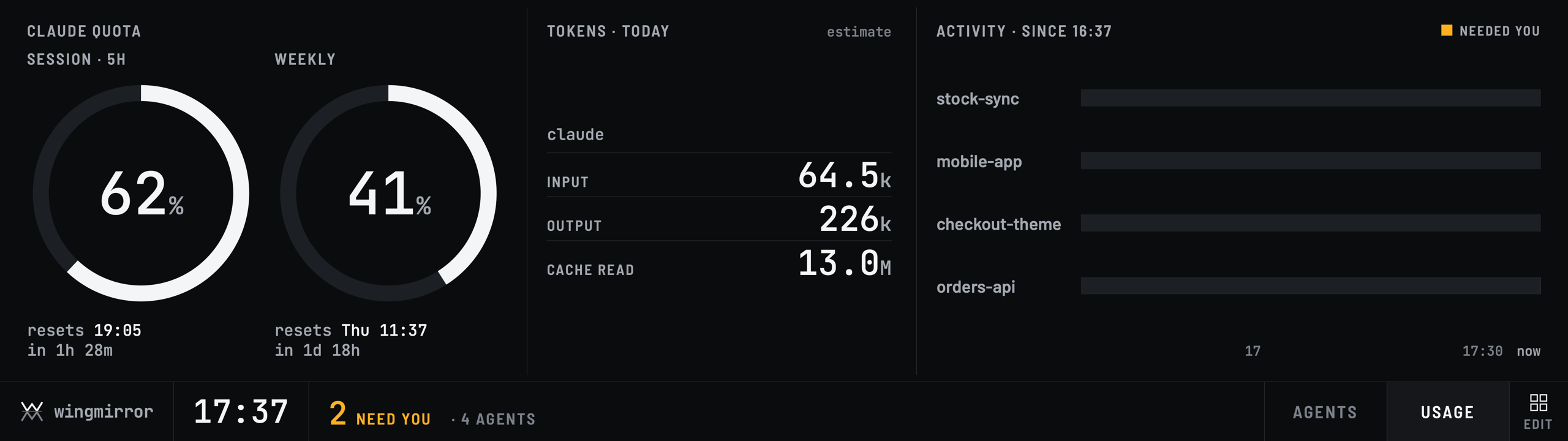
The quota comes from Claude Code's status line, which reports it on Pro and Max plans only. Token totals are an estimate read from Claude Code's transcripts on this Mac.
The look
The type size, the accent colour, flat widgets or cards, and what is behind them can be set for the whole panel or for one page. The bar can go along the top or the bottom, lose its name, show your own logo in place of the mark, and carry a button for the ambient page. See Look, Display and Pages.
The ambient page
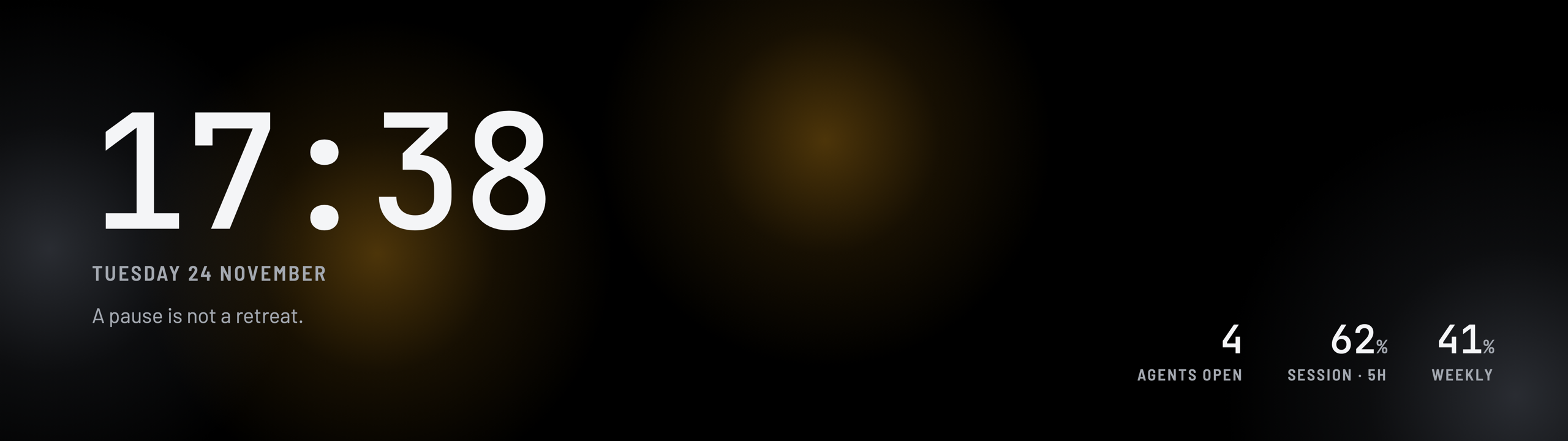
The time over drifting lights, flowing lines or stars, with a few figures and, if you like, a short line to work by. It takes the panel after a few quiet minutes (2, 5 or 15; off by default) or from a button on the bar, and goes at a touch or the moment a session starts work or needs you. The clock moves slowly about the page so that it does not sit on the same pixels all day; it can be told to keep still.
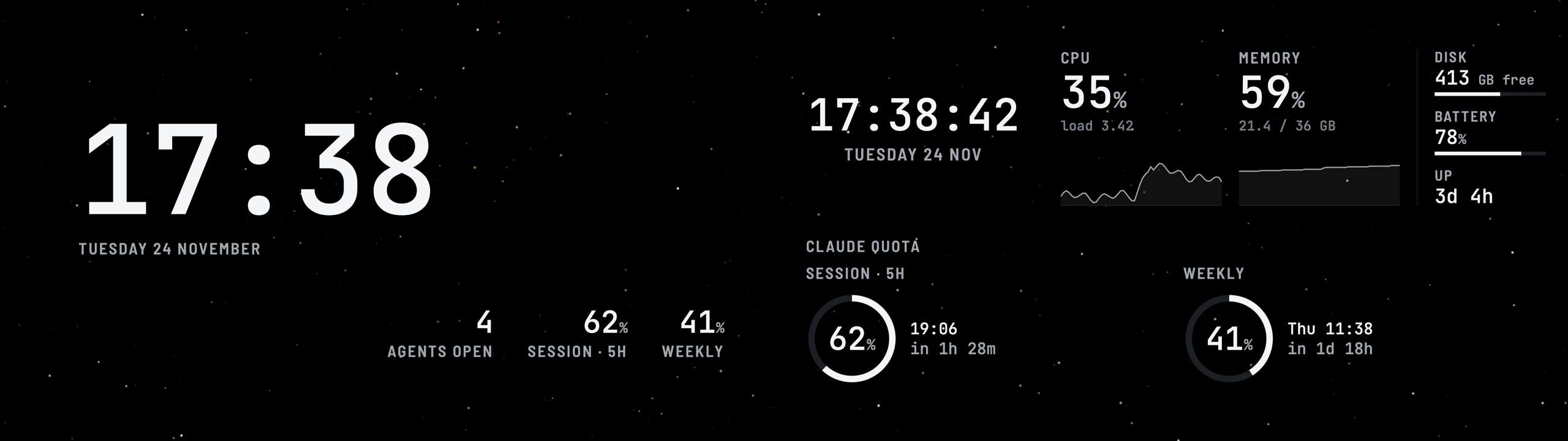
It is arranged like any other page. The clock and the figures are a widget, Ambient, which starts as large as the panel; make it smaller or take it off, and any other widget can stand beside it or in its place over the same backdrop: a clock with seconds, the quota, the Mac's figures, one of your own. See Arranging the panel.
Widgets and pages
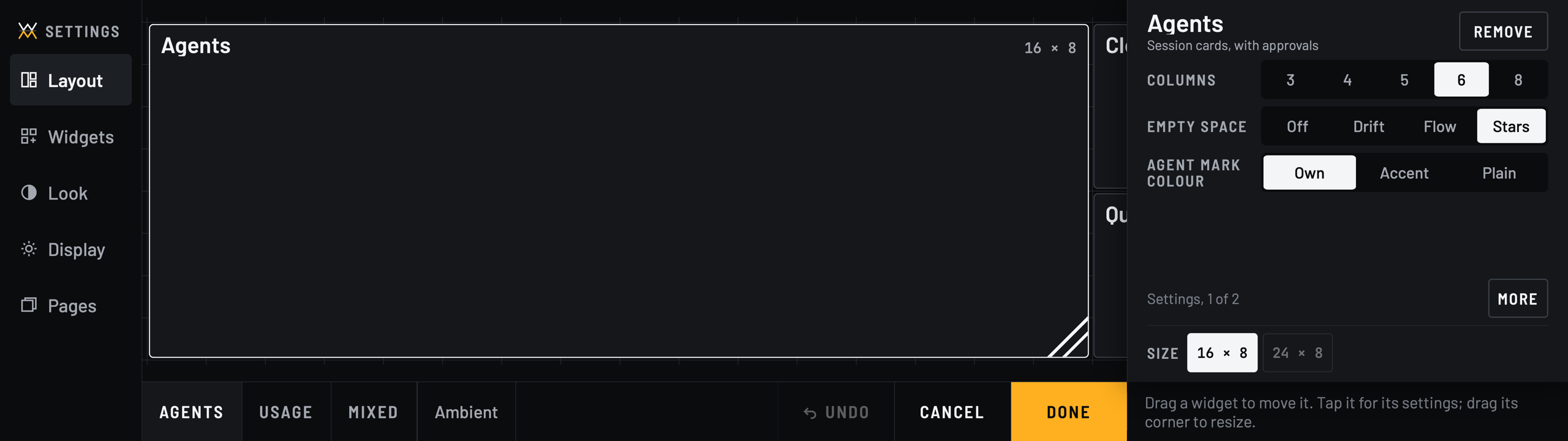
The panel is a grid of 24 columns by 8 rows, and everything on it is a widget. A settings area on the panel itself, made for a finger, moves and resizes them, changes their settings, adds pages, and sets the look and the brightness. See Arranging the panel.
System, Git and the action grid
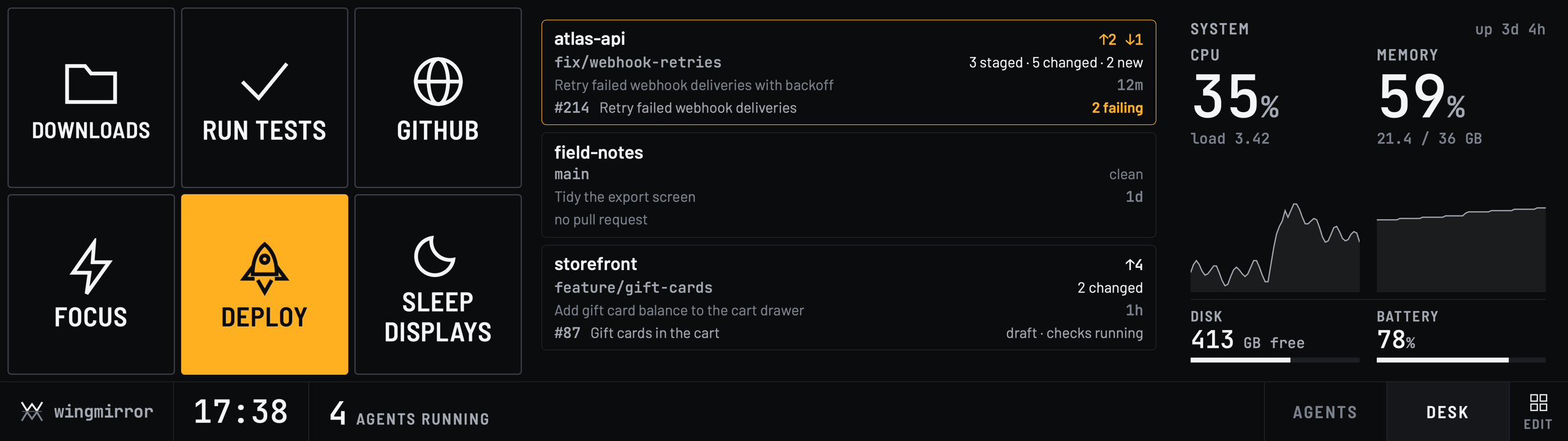
The System widget shows the Mac's own figures. The Git widget shows the state of each repository a Claude Code session is working in. The action grid is a set of buttons you define in a file on the Mac: each opens a file, folder, app or web address, runs a shortcut from the Shortcuts app, or runs a command.
Touch
Taps go to the panel and nowhere else: the Mac's pointer does not move and nothing on another display reacts. Without the app, macOS treats the Edge's touch layer as a mouse aimed at whichever display holds the pointer.
Locking
While the Mac is locked the panel shows a black cover and takes no touches.