wingmirror Download

macOS menu bar app · Corsair Xeneon Edge

A touch panel for the coding agents on your Mac.

Wingmirror turns a Corsair Xeneon Edge, a 14.5" 2560×720 touchscreen, into a panel for the coding agents running on your Mac. It shows every session, what each one is doing and how full its context is, and when one asks permission to run something you can approve or deny it with a tap.

Free, MIT licensed. macOS 14 or later, on Apple Silicon. No release has been published yet: until there is one, build it from source.

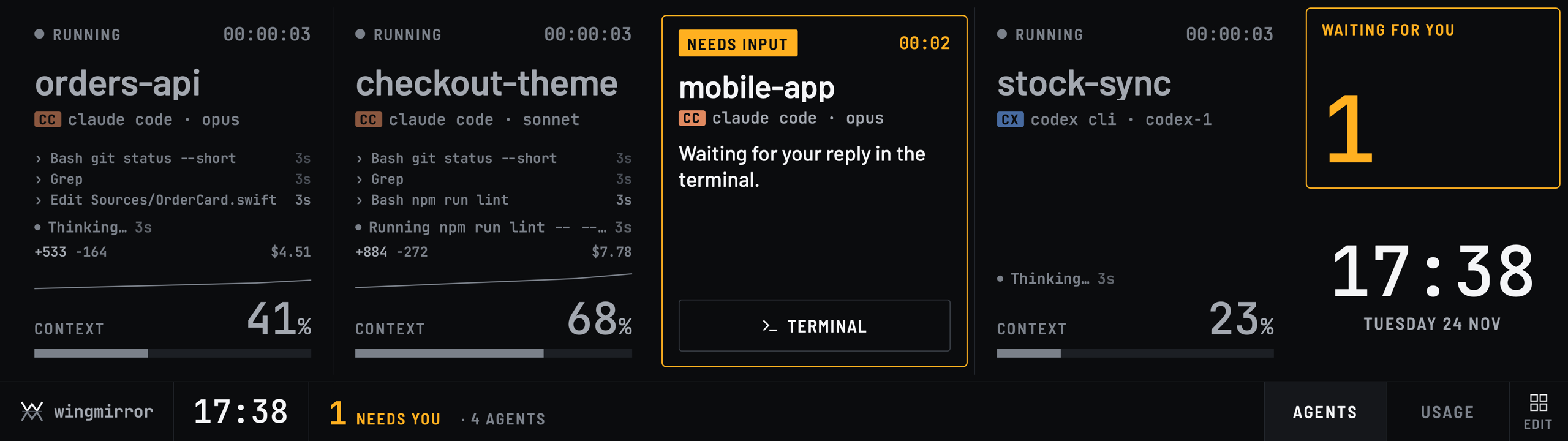
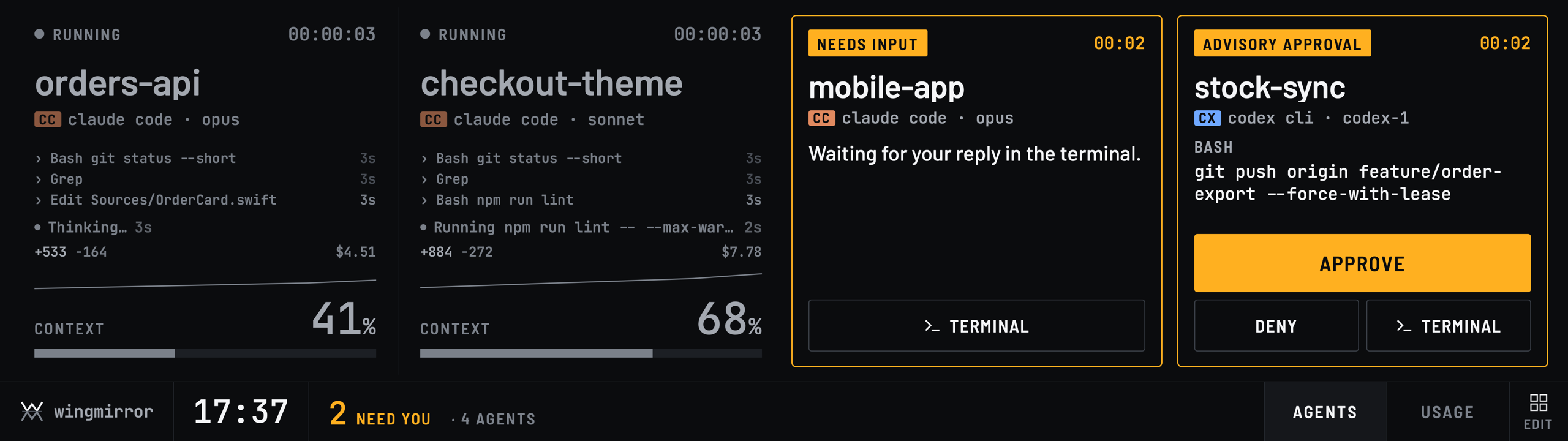
The panel with one session waiting for approval, one waiting for a reply and two at work
The panel at its own shape, 2560×720. The sessions in the pictures are made up. Scroll sideways to see the whole panel.
  • 2560×720The Edge's touchscreen
  • 24×8Grid of widgets per page
  • 127.0.0.1The only address it listens on
  • MITFree, source on GitHub

What it does

Every session on one strip of glass, and an answer without leaving your work.

A permission request is still open in the terminal at the same time, and whichever answer comes first wins. The panel is a second place to see it and answer it, not a replacement for the first.

The agents page

One card per session.

Each card has the project, the agent and model, how long the session has been in its state, the last few tools it finished, lines added and removed, cost, and context use as a line over time and a figure, where the agent reports them.

While a session works, one line on its card says what it is doing this moment and for how long. A session that needs you turns into a card in the accent colour.
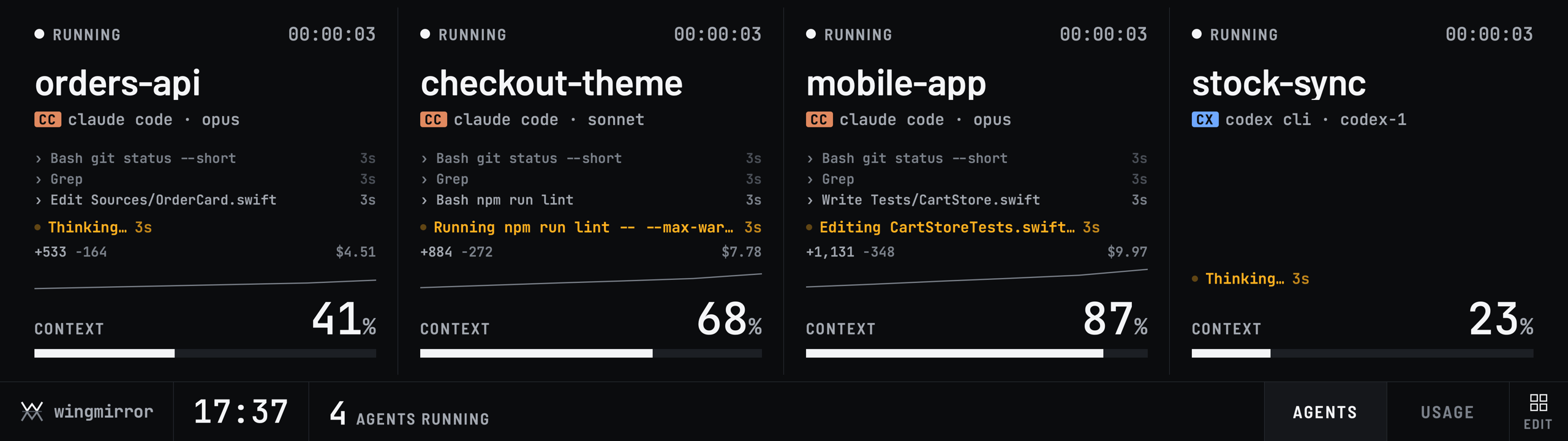
Four sessions at work, each with a line saying what it is doing

Approvals

Approve, Deny or Terminal, on the card.

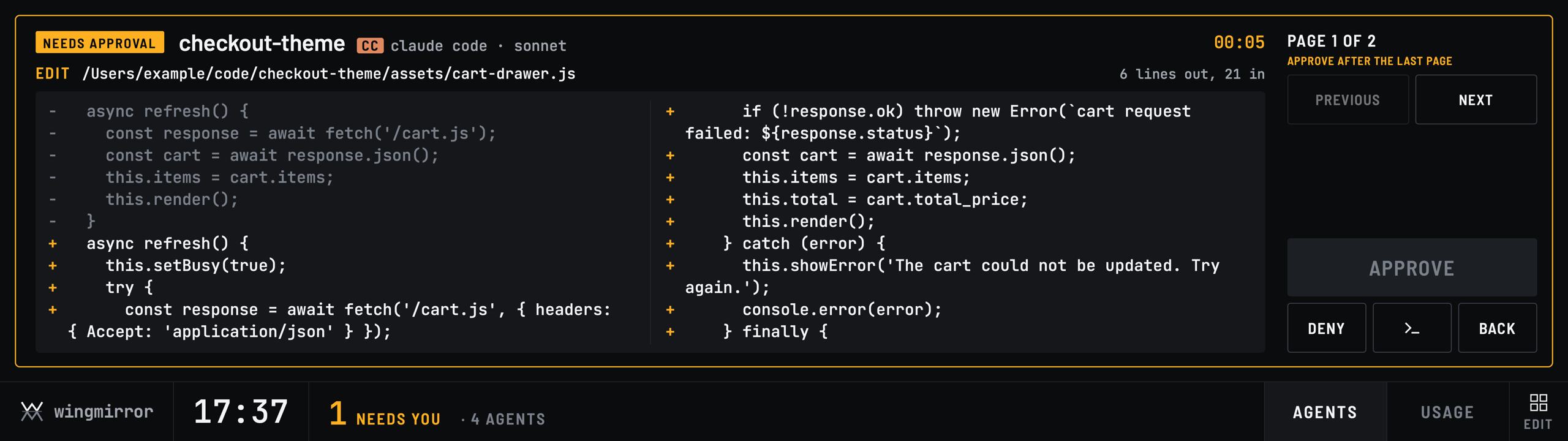
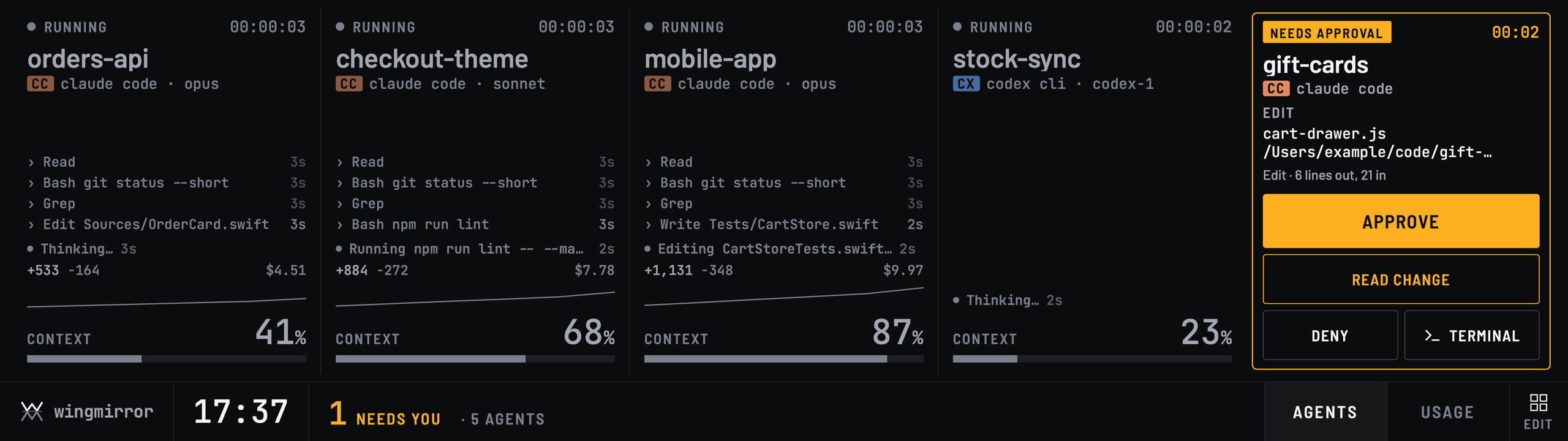
Approve is offered only for what you have been shown. A command gets Approve when the whole command is on the card. A file edit can be approved on its file name and the size of the change, or opened and read first; a long command is read in pages before Approve comes alive.

Terminal brings the session's own terminal forward. In Terminal and iTerm it selects the right tab and raises its window.

A file edit on its card, with Approve, Read change, Deny and Terminal
A file edit on its card.
The same edit opened in the reader, page one of two, with Approve waiting for the last page
The same edit in the reader. Approve waits for the last page.

The usage page

Quota, tokens and the day's timeline.

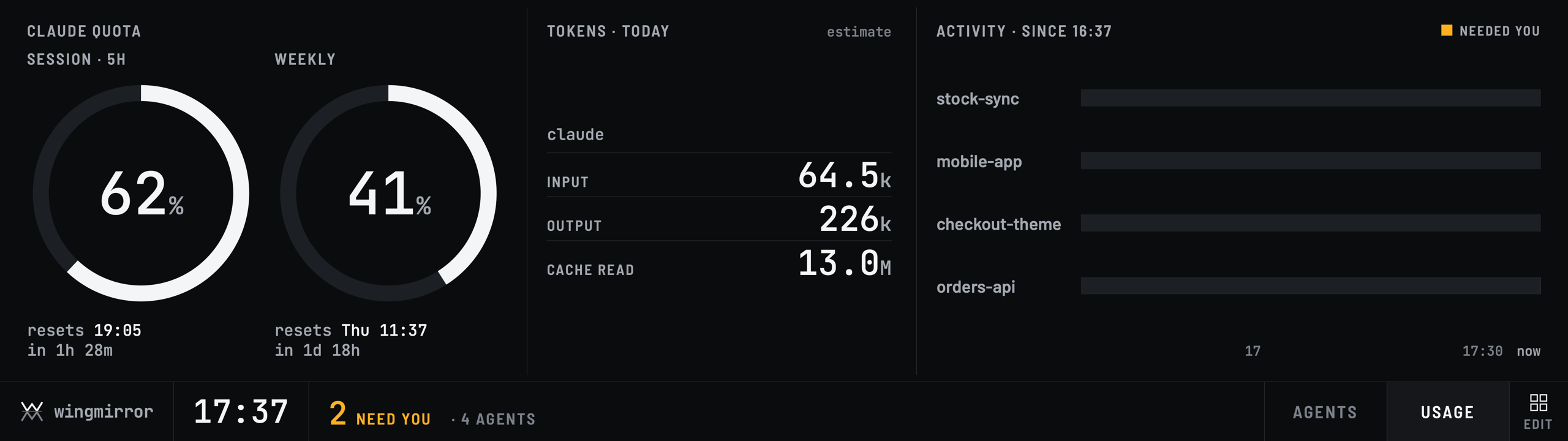
Claude Code's five-hour and weekly quota as rings, today's token totals, and a timeline with one bar per session marking the moments it needed you.

The quota comes from Claude Code's status line, which reports it on Pro and Max plans only. Token totals are an estimate read from Claude Code's transcripts on this Mac.

The usage page: quota rings, today's token totals and the activity timeline

System, Git and the action grid

The rest of the desk.

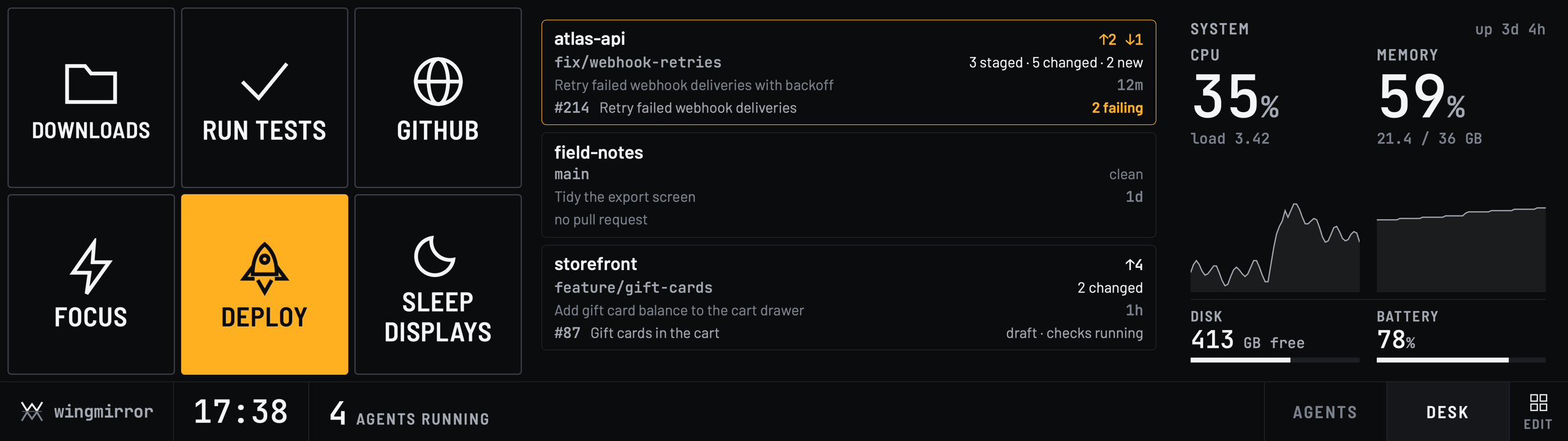
The System widget shows the Mac's own figures. The Git widget shows the state of each repository a Claude Code session is working in. The action grid is a set of buttons you define in a file on the Mac: each opens a file, folder, app or web address, runs a shortcut from the Shortcuts app, or runs a command.

A page of the action grid, the Git widget and the System widget

The ambient page

A clock for the quiet stretches.

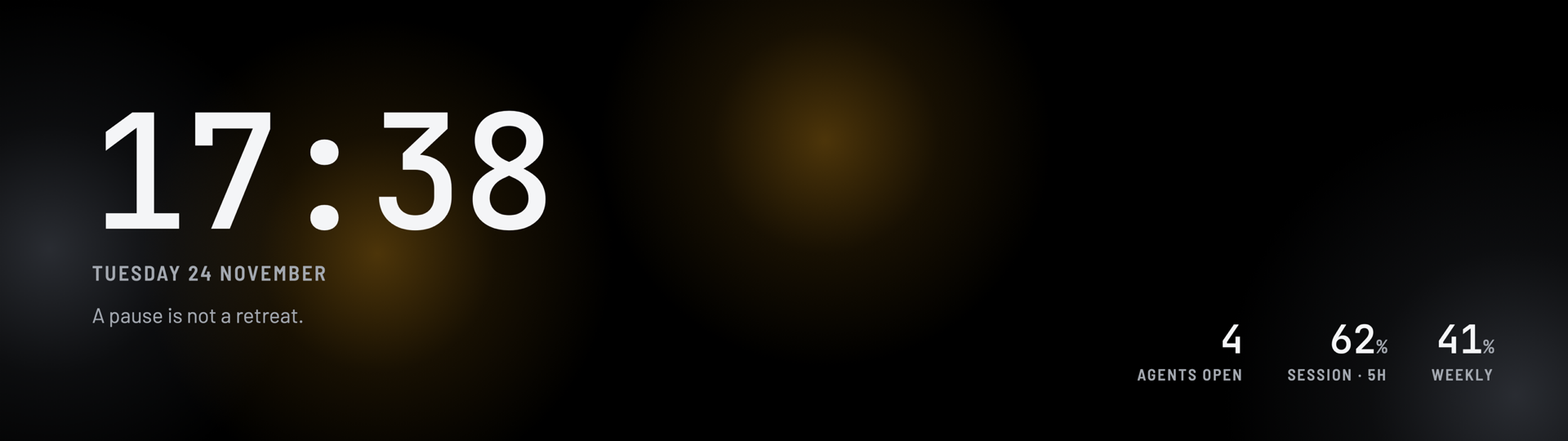
The time over drifting lights, flowing lines or stars, with a few figures and, if you like, a short line to work by. It takes the panel after a few quiet minutes (2, 5 or 15; off by default) or from a button on the bar, and goes at a touch or the moment a session starts work or needs you. It is arranged like any other page: other widgets can stand beside the clock or in its place, over the same backdrop.

The ambient page: the time, the date, a line to work by and three figures over drifting lights

Touch goes to the panel

Taps go to the panel and nowhere else: the Mac's pointer does not move and nothing on another display reacts. Without the app, macOS treats the Edge's touch layer as a mouse aimed at whichever display holds the pointer.

A locked Mac shows nothing

While the Mac is locked the panel shows a black cover and takes no touches, so nobody can read what your agents are doing or approve a command while you are away.

Everything stays on the Mac

It listens on 127.0.0.1 only. There is no telemetry and no account. The update check asks api.github.com for the latest release; nothing about your Mac or your sessions is sent with it. Pull requests in the Git widget, off by default, go to GitHub as you, through your own gh. Nothing else leaves the Mac.

Only the panel can answer

Approving, denying and answering a question all need a secret that is made afresh each time the app opens. Another program on the Mac, an agent included, cannot approve a request by calling the app.

The whole account is under Privacy and security in the README.

Requirements

What you need.

Wingmirror was built for one desk: one Mac, one Xeneon Edge, in the horizontal position. There is no build for Intel Macs, and nothing for Windows or Linux.

  • A Mac macOS 14 or later, on Apple Silicon.
  • A coding agent Claude Code, Codex, GitHub Copilot, Cursor, or an agent you can make send an HTTP request.
  • Any display, for the panel with a mouse The panel is a window you can resize and drag to any display, or covers the whole of a display you choose in the menu. It keeps its 32:9 shape and sits in the middle of a display of another shape.
  • A Corsair Xeneon Edge, for touch and panel control Connected by USB-C to a port that carries video. One cable carries video, power and touch. With video over HDMI the USB-C cable is still needed, for power and touch. Touch, brightness, blanking and sleep need it.

Without an Edge the panel opens in an ordinary window on the main display, and moves to the Edge by itself when one is connected. The panel on any other display has been checked by tests and by pictures drawn off screen, and not yet used by a person.

Install

Three steps to a working panel.

Install the app, go through the setup window, and connect an agent. The README has every detail of what each step changes on your Mac and how to put it back.

  1. Get the app

    No release has been published yet, and the repository is private for now. Until that changes the only way to get the app is to build it from source, which needs access to the repository.

    When there is a release it will be on the releases page, and installing it will be:

    1. Download Wingmirror-<version>.dmg from the releases page and open it.
    2. Drag Wingmirror to Applications, then open it from there.

    From source

    git clone https://github.com/ecomlabsio/wingmirror.git
    cd wingmirror
    tools/make-app.sh
    open ~/Applications/Wingmirror.app

    That builds ~/Applications/Wingmirror.app, signed ad hoc. It needs a Swift 5.10 or later toolchain (Xcode 15.3 or later, or its command line tools); there are no third-party dependencies. An ad hoc build has to be allowed Input Monitoring again after every rebuild. See Building from source.

  2. Go through the setup window

    Wingmirror has no Dock icon; it lives in the menu bar, as a small mark of two zig-zags with a line between them. The first time it is opened as an app it shows the setup window. Afterwards the window is under Setup… in the menu.

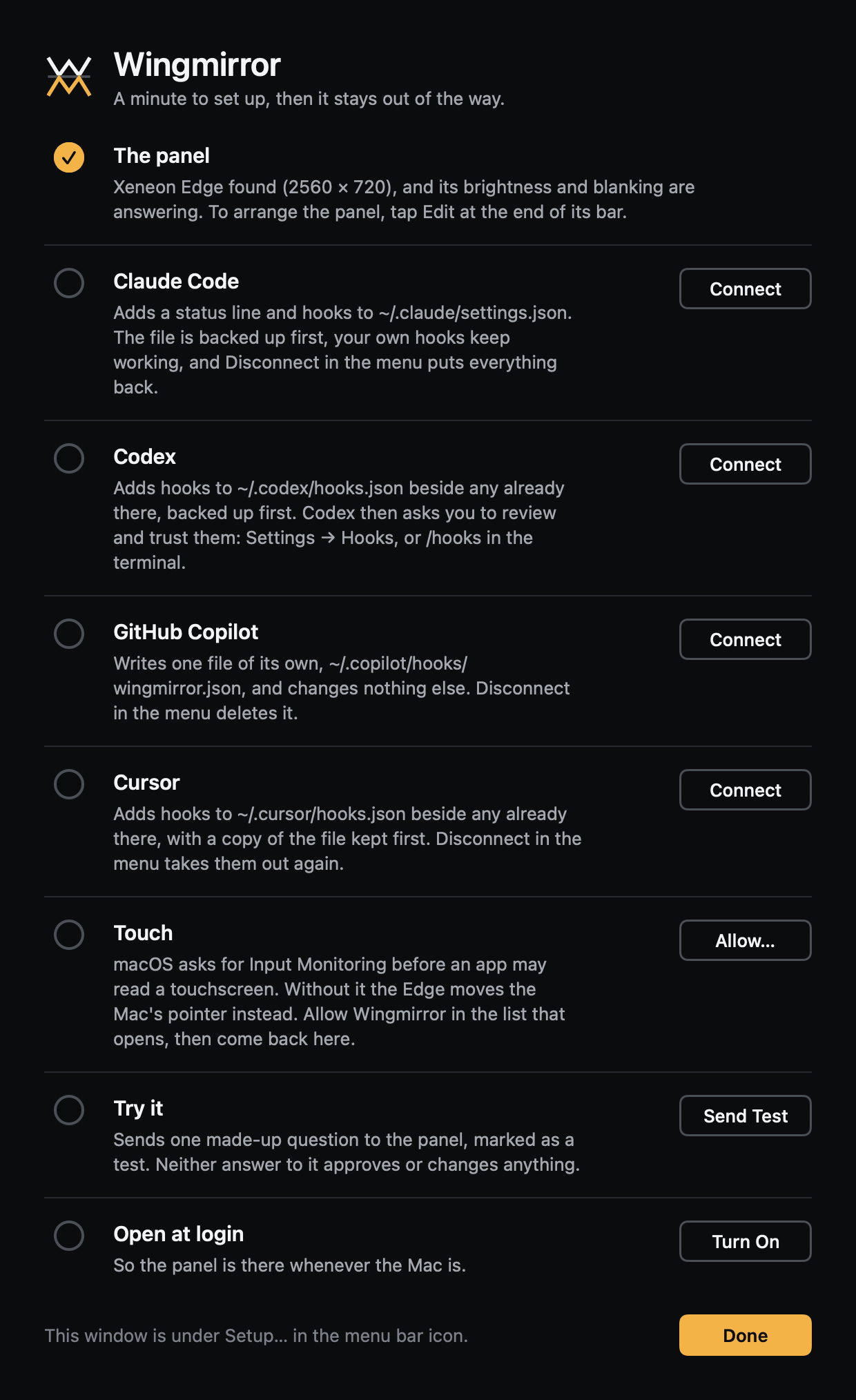
    Each row has a circle that fills in when the step is done, and a button when there is something to do: the panel, each agent found on the Mac, touch, a test question to try the panel with, and opening at login.

    For touch, press Allow…, switch Wingmirror on in the Input Monitoring list that opens, come back, and press Reopen Wingmirror. macOS requires Input Monitoring before an app may read a touchscreen. Wingmirror reads no keyboard and no other device.

    The only other permission is control of Terminal or iTerm, asked once, the first time you tap Terminal on a session running in one of them. It asks for nothing else: not Accessibility, not Screen Recording, not Full Disk Access.

    The setup window on a first run: the panel found, and the four agents, touch, the test and opening at login still to do
    The setup window on a first run.
  3. Connect an agent

    Press Connect on the agent's row in the setup window, or choose its Connect line in the menu and confirm. For Claude Code the menu line then reads "Claude Code: Connected", and a new session appears on the panel with its first status line.

    Connecting Codex takes a second step, done in Codex: it runs a hook only after you have reviewed and trusted it, under Settings → Hooks in the desktop app or with /hooks in the terminal.

    The row itself says what will change. For Claude Code a status line and hooks are added to ~/.claude/settings.json; your own hooks are left where they are, and the file is copied to a backup beside it before every change.

    Disconnect in the menu puts things back. With the app not running, each agent behaves as if nothing were installed.

    The rows for Codex, GitHub Copilot and Cursor are shown only if that agent's folder exists in your home folder.

Agents

Which agents it works with, and how far.

Claude Code and Codex have built-in connections, GitHub Copilot and Cursor each have a first one that shows their sessions, and anything else can report over HTTP.

Agent On the panel How far it has been tried
Claude Code Sessions with what each is doing, context, cost and recent tools. Permission requests with Approve and Deny. The quota rings, the token totals and the Git widget follow Claude Code. Approving a request from the app has been seen working on real sessions.
Codex A session shows from its start, with its project, its model, what it is doing, and its permission requests with Approve and Deny. No context figure. Local sessions only. Sessions through its hooks have been seen working. Codex must be told to trust the hooks before it runs them.
GitHub Copilot first version Shows the session, its state and the tools it has finished, and says when it is waiting for you. The request itself is answered in Copilot. Written from GitHub's hooks reference. It has not been tried against a real Copilot install.
Cursor first version Shows the session, its model, its state, the tool it is running and the ones it has finished. It does not say when Cursor is waiting at its own prompt. Written from Cursor's hooks reference and from reading its code. No Cursor session has been run with it.
Anything else HTTP or MCP Anything that can make an HTTP request can put a session on the panel, ask for a decision, post a note or ask a question. None of this needs setting up in the app. The app is also a Model Context Protocol server, so an agent that can call tools gets cards and questions without any scripting. Cards posted over HTTP have been seen working on the real panel. The MCP server has not yet been tried with a real client.

A decision asked for over HTTP is badged Advisory approval: nothing but the agent's own good behaviour makes it wait for the answer or obey it, so keep the agent's own permission settings as the real guard. Connecting coding agents has worked examples for Gemini CLI, OpenCode and Grok Build, none of them tried against a real install.

Widgets and pages

Arrange it with a finger, or write a widget of your own.

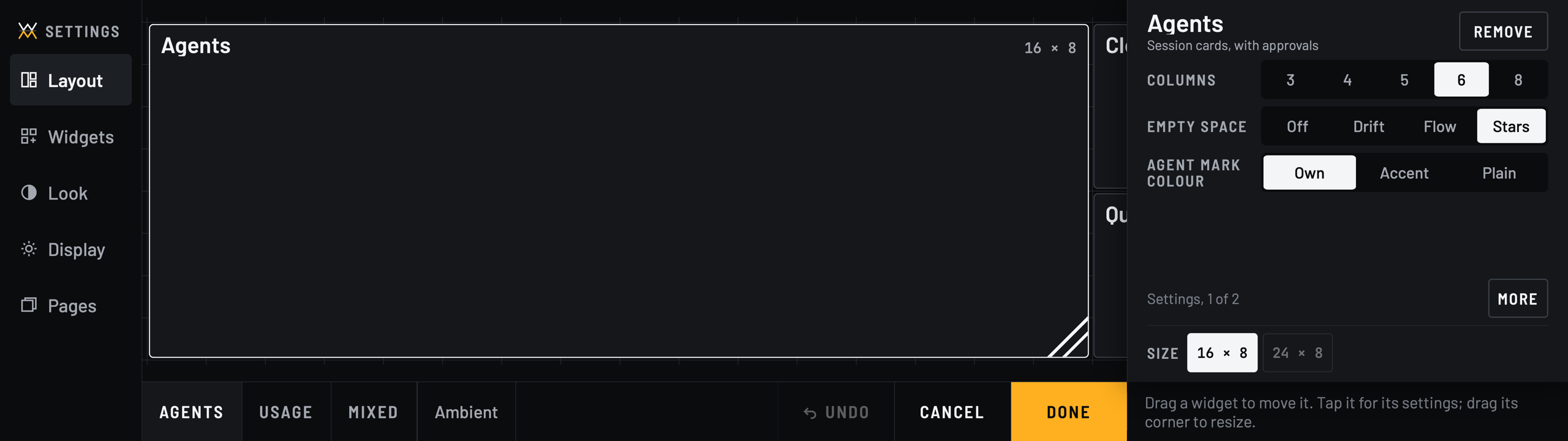
The panel is a grid of 24 columns by 8 rows, and everything on it is a widget. A settings area on the panel itself, made for a finger, moves and resizes them, changes their settings, adds pages, and sets the look and the brightness.

The settings area on Layout, with the Agents widget chosen and its panel open
The settings area on Layout. Nothing of the layout is saved until Done.

Built in

Twelve widgets, up to six pages.

Drag a tile to move it, pull its corner to resize it, tap it for its settings. A layout can be exported as one JSON file and imported on another Mac.

Agents
The session cards, with approvals and questions on them
Approvals
The requests waiting, oldest first, with Approve and Deny
Messages
The cards agents have posted, newest first
Action Grid
Buttons that run your own shortcuts, scripts and links
System
Processor and memory use, free disk space, the battery, load and uptime
Git
The branch and its state for each repository a Claude Code session is working in
Quota
Claude Code's five-hour and weekly quota as rings
Tokens
Today's input, output and cache-read totals
Activity
The day's timeline, one bar per session
Figures
What you answered on the panel and in the terminal, and an estimate of the time saved
Clock
The time and date
Panel
The brightness, with buttons for dimmer, brighter and Blank
Your own
A folder with two files, picked up by the panel within a couple of seconds

The look

Type size, accent, cards and themes.

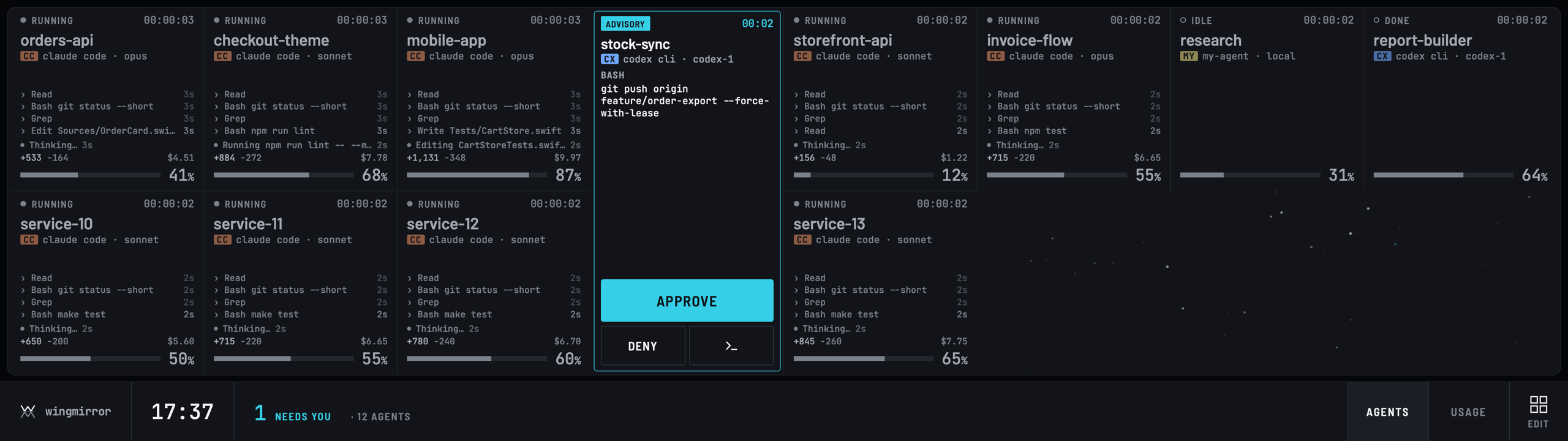
The type size, the accent colour, flat widgets or cards, and what is behind them can be set for the whole panel or for one page. There are three themes: Classic, Midnight and Guildhall. The bar can go along the top or the bottom, lose its name, and show your own logo in place of the mark.

Out of the box the look is Classic, Large, amber, Flat, Black.

Twelve sessions at the fine type size, on cards, with a cyan accent
Twelve sessions at the fine type size, on cards, with a cyan accent.

Writing your own widgets

A folder with two files.

A widget is a folder with two files, manifest.json and index.html, in ~/Library/Application Support/Wingmirror/widgets/. The panel picks a new folder up within a couple of seconds and reloads a widget whenever one of its files is saved.

Start one from a terminal

/Applications/Wingmirror.app/Contents/MacOS/Wingmirror \
  widget new needs-me "Needs Me"

A build made with tools/make-app.sh is in ~/Applications, not /Applications. The command creates a working widget that counts the sessions at work. The README changes it to count the sessions waiting for you, shown at the top right of the picture below. Tap Edit, then Widgets, and it is in the list.

Every widget runs in a sandboxed frame. It gets the data its manifest lists, and one that asks to do more than draw does nothing until you allow it under Widget Permissions in the menu.

Writing a widget is the guide: the manifest fields, the SDK, the topics, the actions, the tokens, and two longer examples.

manifest.json

{
  "id": "needs-me",
  "name": "Needs Me",
  "version": "1.0.0",
  "sizes": [[2, 2], [3, 2]],
  "data": ["sessions"],
  "actions": [],
  "network": [],
  "settings": []
}
The example widget at the top right of the agents page, counting one session waiting